Chatbox access Deepseek API Course
Official configuration tutorial for ChatBox:https://docs.chatboxai.app/guides/providersIf you are searching for how to use a DeepSeek API key in Chatbox, what you usually need is not only a key, but a complete path that actually works. This guide walks through account setup, recharge, API key creation, and the exact Chatbox configuration steps needed to start chatting successfully.
AI Token Proxy is a third-party DeepSeek-compatible access system. In Chatbox, make sure you add a custom provider, choose the OpenAI API Compatible mode, and fill in the API Key, host domain, and model details correctly.
What you need before you start
- An AI Token Proxy account
- A verified email address
- Recharge balance for API usage
- An API key created inside AI Token Proxy
- Chatbox installed and ready to configure
Step 1. Register an account
Open AI Token Proxy, click Register in the top-right corner, then fill in Username, Email, Password, and Confirm Password. Submit the form to create your account.
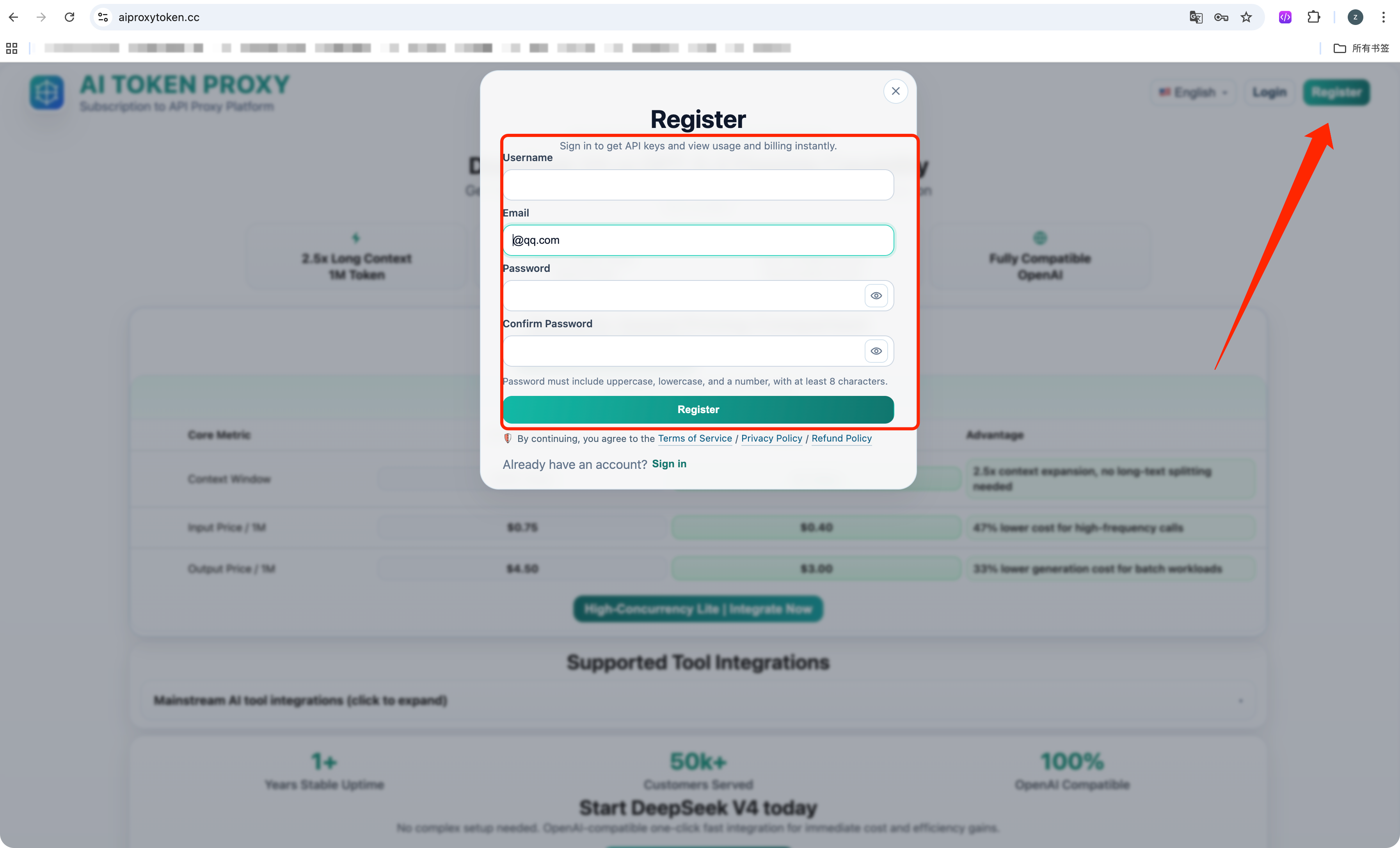 Register your AI Token Proxy account
Use this page to create the account that will later be used for recharge, API key creation, and Chatbox access.
Register your AI Token Proxy account
Use this page to create the account that will later be used for recharge, API key creation, and Chatbox access.
Step 2. Verify your email before login
After registration, the email address you used will receive a verification email. Open that email and click the verification link to activate the account. If you skip this step, the platform will block login until the email is verified.
Step 3. Sign in to the platform
Once the email is verified, return to the login dialog, enter your Email / Username and Password, then click Sign in.
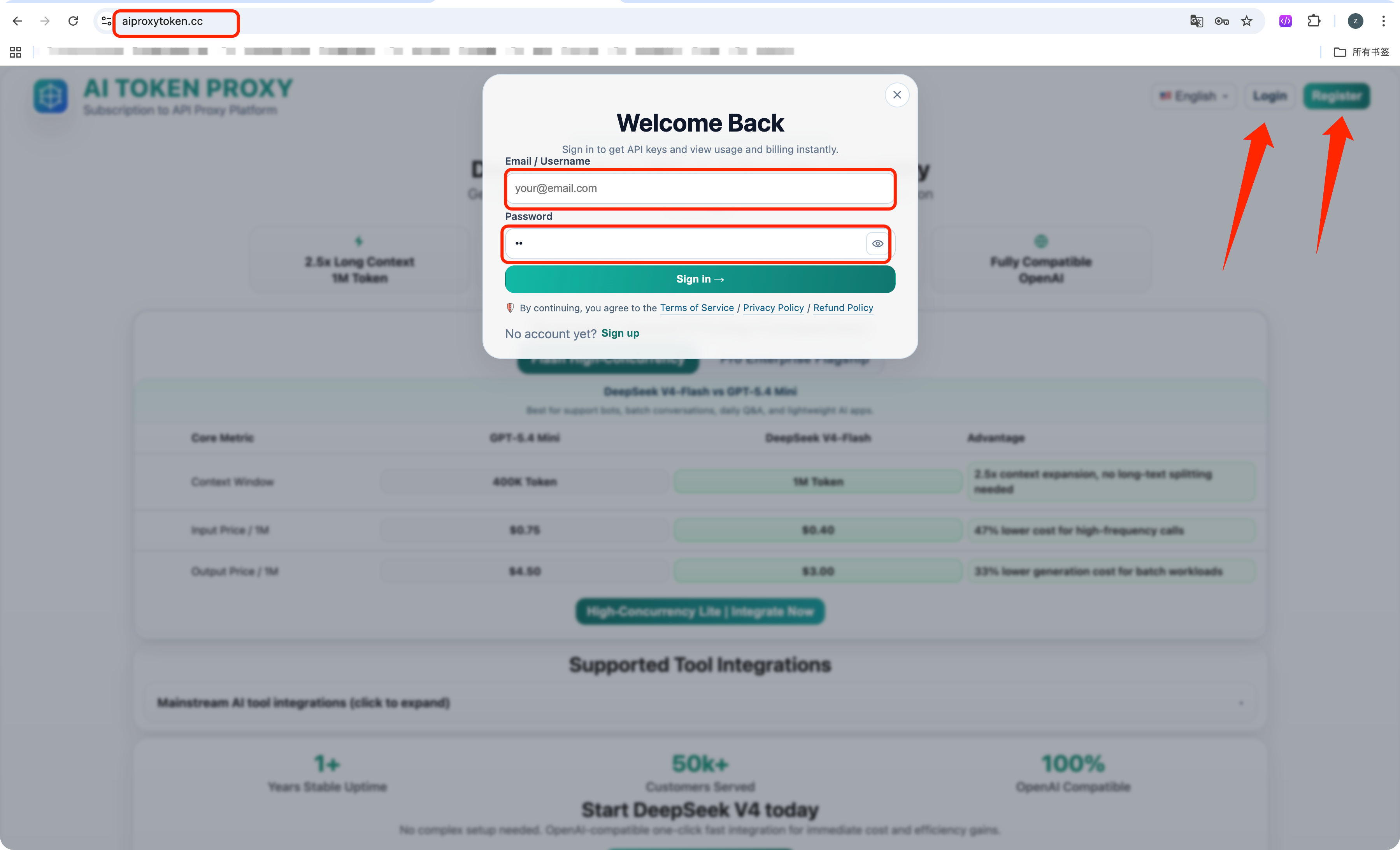 Log in after email verification
Only verified accounts can continue to the recharge page, API key module, and proxy tools.
Log in after email verification
Only verified accounts can continue to the recharge page, API key module, and proxy tools.
Step 4. Recharge your account balance
Go to the left-side Recharge page, choose a recharge amount, confirm the default payment method is Paddle, and click Pay Now. Your balance is used for API calls, so this step is required before actual usage.
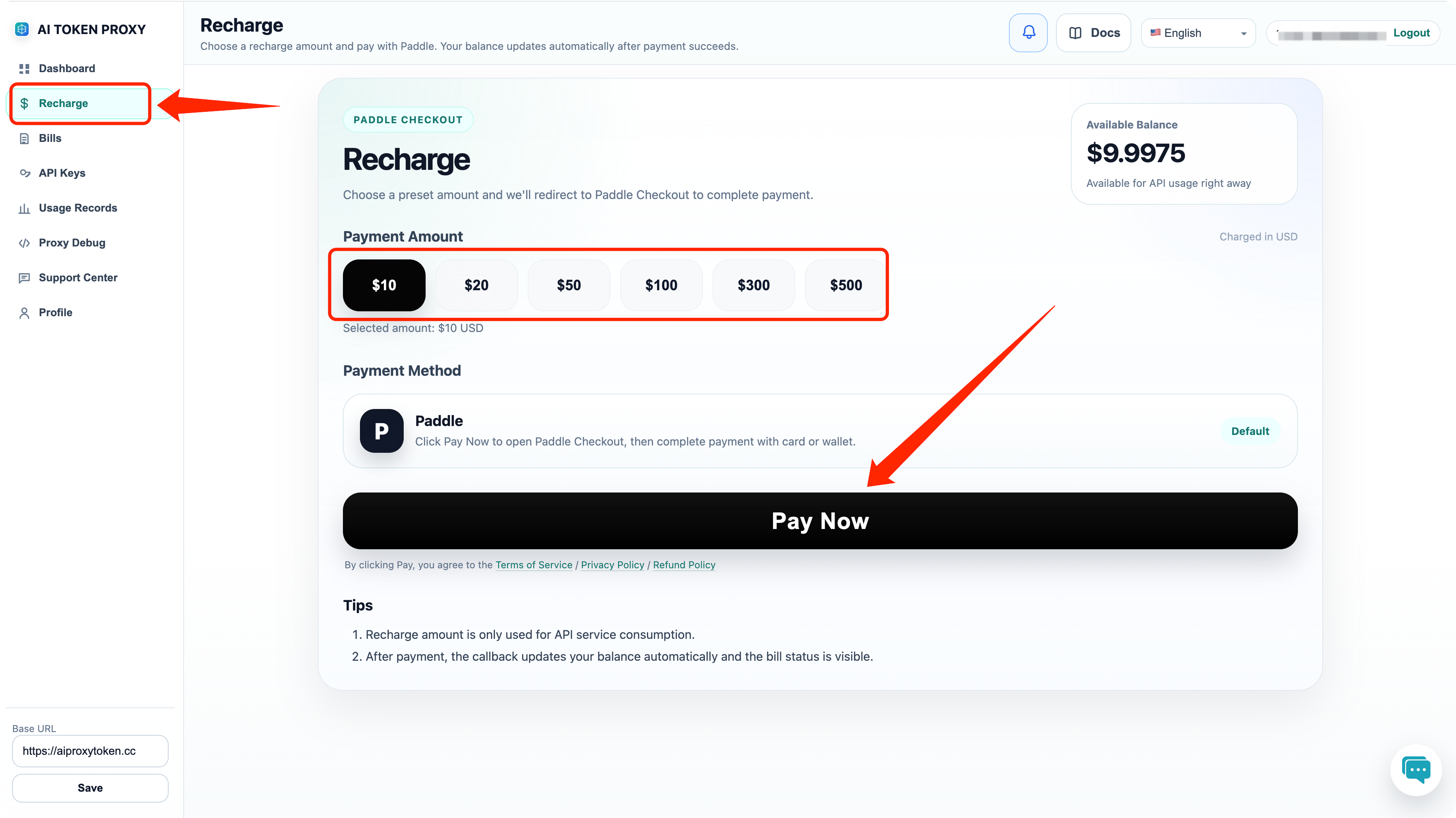 Recharge before using the API
Select a preset amount and complete the payment so the account has available balance for requests.
Recharge before using the API
Select a preset amount and complete the payment so the account has available balance for requests.
Step 5. Create and prepare your API key
Open the API Keys page. Click Create Key to create a new key if needed. After a key is available, copy it when necessary and keep it ready for Chatbox configuration.
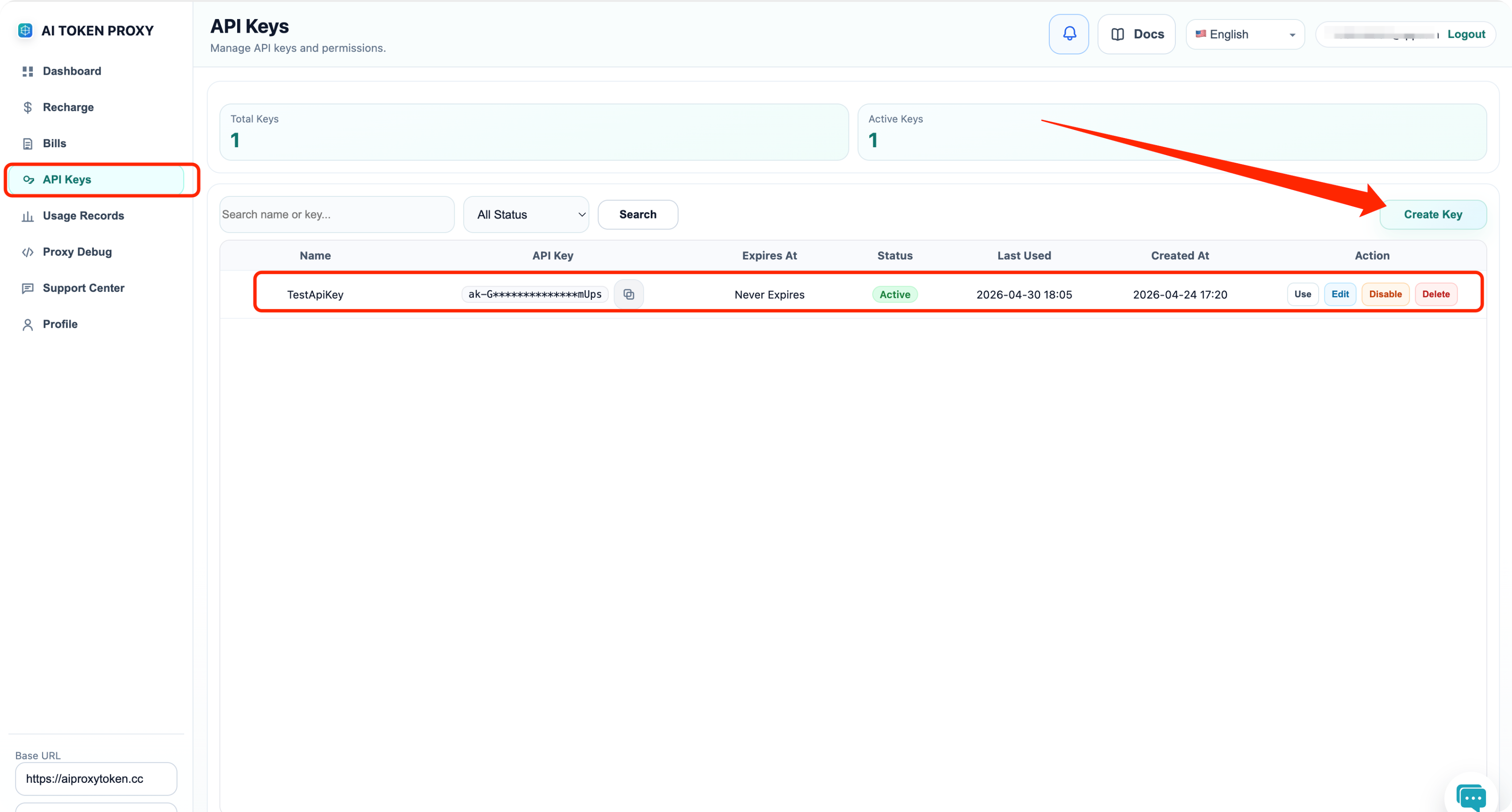 Create a new API key or reuse an existing one
The key shown here will be used later when Chatbox connects to AI Token Proxy.
Create a new API key or reuse an existing one
The key shown here will be used later when Chatbox connects to AI Token Proxy.
Step 6. Open Chatbox settings and add a custom provider
Open Chatbox settings, click the model provider section, then click Add. Use a custom name such as AIProxyToken, and choose OpenAI API Compatible as the API mode.
 Add a custom provider in Chatbox
Chatbox should be configured with a custom provider entry that uses the OpenAI-compatible API mode.
Add a custom provider in Chatbox
Chatbox should be configured with a custom provider entry that uses the OpenAI-compatible API mode.
Step 7. Fill in the API key and API host domain
Paste the API key created in AI Token Proxy, then fill in the API host domain as
https://www.aiproxytoken.cc. Turn on the network compatibility option, then click
Create Model or Get Models depending on the Chatbox version you
use.
 Paste your key and set the host domain
Make sure the API key comes from AI Token Proxy and the host domain is filled in exactly as shown before you fetch or create models.
Paste your key and set the host domain
Make sure the API key comes from AI Token Proxy and the host domain is filled in exactly as shown before you fetch or create models.
Step 8. Select the DeepSeek model and start chatting
After the provider is configured, return to the main Chatbox interface and select deepseek-v4-flash from the model selector in the bottom-right corner. You can also switch to deepseek-v4-pro if that model is available in your setup.
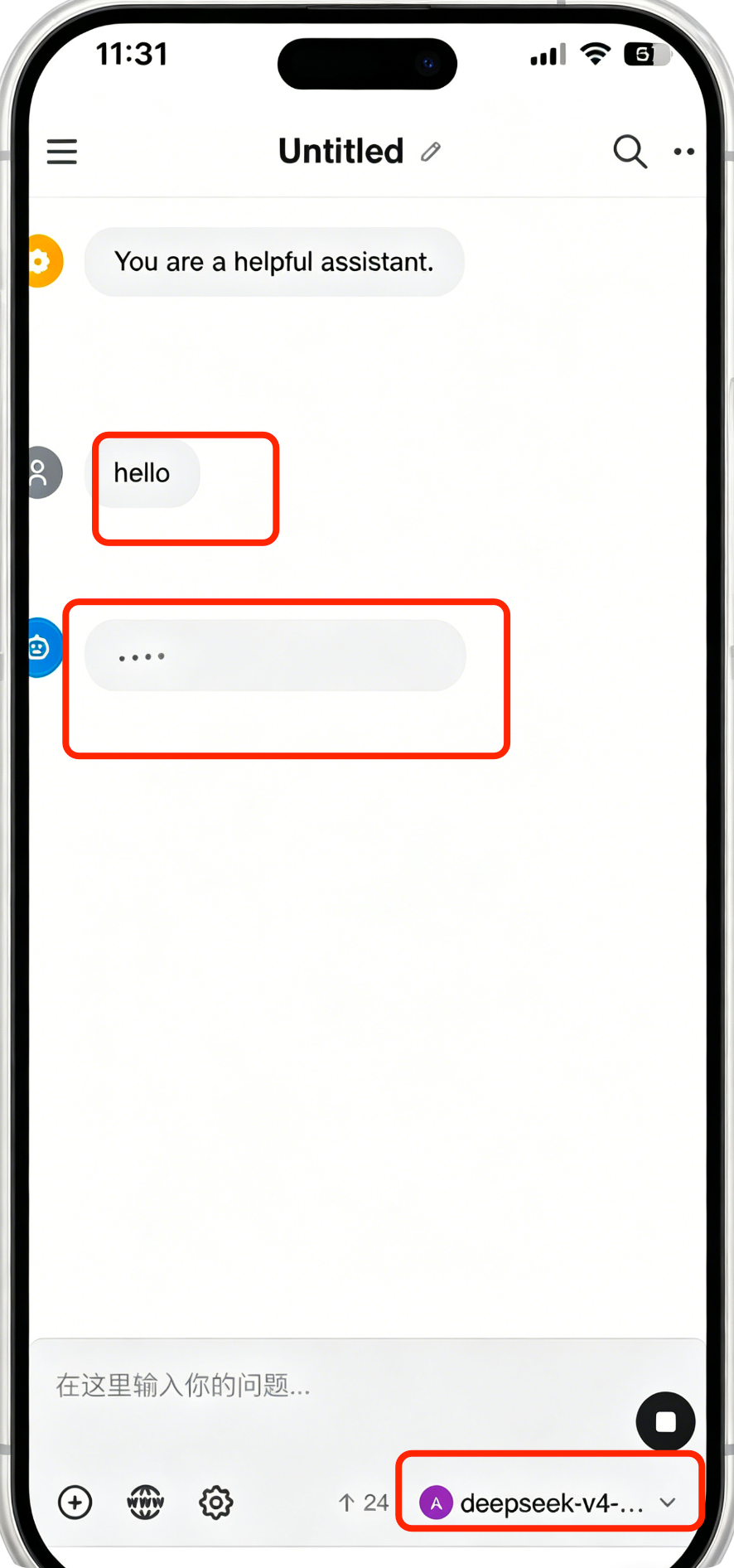 Choose the DeepSeek model and begin chatting
Select
Choose the DeepSeek model and begin chatting
Select deepseek-v4-flash or deepseek-v4-pro in Chatbox and start using DeepSeek through AI Token Proxy.
Common mistakes
- Trying to log in before opening the email verification link.
- Using the account without recharge balance.
- Selecting the wrong API mode instead of OpenAI API Compatible.
- Typing the host domain incorrectly instead of
https://www.aiproxytoken.cc. - Forgetting to enable network compatibility before validating the configuration.
The simple takeaway
Using DeepSeek in Chatbox becomes straightforward once the flow is clear: register, verify your email, log in, recharge, create an API key, add a custom provider in Chatbox, choose the OpenAI-compatible mode, fill in the key and host domain, and then select the DeepSeek model you want to use.
AI Token Proxy helps users manage API keys, recharge balance, usage records, and integration setup in one place, making Chatbox configuration much easier for everyday use.